
Editor
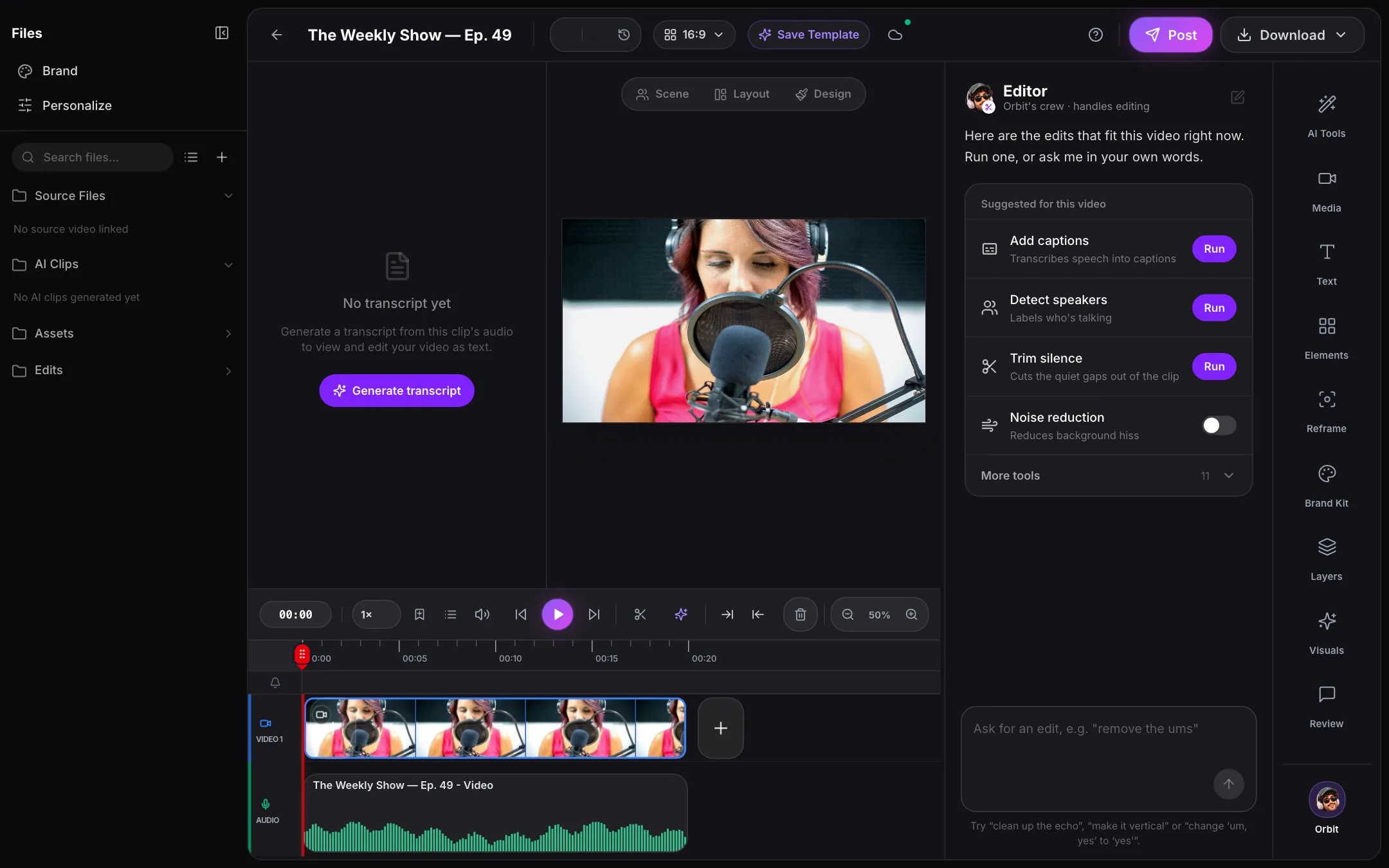
Clean up the show likea document.
Delete a sentence from the transcript and it’s gone from the video. Captions and your brand are already on.
Works in your browser
How it works
Cut. Polish. Share.
- 01
Cut the transcript
Delete words, filler and long pauses, and the video follows.
Edit by text - 02
Polish in a click
Clean sound, captions, reframing, eye contact and background, one button each.
AI tools - 03
Review and export
Share a review link for comments, then export MP4 and captions.
Review
Try it here
Have a go with Editor.
A working model of the real thing. Click around: nothing is sent, nothing is saved.
 So 0:27
Transcript · click a word to cut it
Start
Caption style
Speakers
Every speaker on their own track.
Studio recordings open with a track per person, so you can fix one voice without touching the others.
Start small, but think long-term.Refine content
Remove silence
Remove filler words
Auto captions
Sound clear
Noise reduction
Who it’s for
Built for the show you run.

- Transcript
- Delete words, remove filler words and silence
- Correct
- Retype a word; it’s said in the speaker’s voice
- Sound
- Noise reduction, de-reverb, voice EQ, loudness levelling
- Picture
- Reframe, smart layouts, eye contact, remove background, colour grading
- Timeline
- Multi-track: split, speed, transitions, voiceover, stock media
- Review
- Review links with comments, replies and approval
- History
- Every step of the session, plus named versions
- Export
- MP4 up to 1080p; captions as .srt or .vtt
Before you edit
Let AI Clips find the moments first.
Clips arrive in the Editor already ranked, captioned and framed. You polish instead of starting from scratch.
FAQ
Questions, answered.
All questionsTalk to the team that builds CloudReel. We reply within one business day.
Talk to usWhat is the CloudReel Editor?
The Editor lets you edit video by editing its transcript: delete a sentence and it’s gone from the video. It adds captions, reframes for vertical, cleans up sound and applies your brand, with a multi-track timeline when you want full control.
What does it cost?
Editing never uses credits. AI work such as captions uses credits, and the cost is shown before it runs.
Do I need editing experience?
No. Most edits are made in the transcript. The timeline is there when you want it.
Can Orbit do the edits?
Yes. Press a button or ask in plain words. Orbit removes filler words, trims silence, reduces noise and echo, reframes to vertical, removes the background, fixes eye contact, adds B-roll you describe, adds captions and finds the speakers. It suggests what to do with the clip you select.
Can I fix a word without re-recording?
Yes. Select the words in the transcript, choose Correct and type what you meant, or ask Orbit to “change X to Y”. The new words are said in the speaker’s own voice, timed to the cut.
Can clients review a cut?
Yes. Share a review link from the Editor. Reviewers watch, leave comments pinned to the moment and approve, with no account. You see every comment on the timeline, reply and resolve.
Can I go back to an earlier version?
Yes. The History panel lists every step of your session, and you can save named versions to return to.
What can I export?
MP4 up to 1080p, plus captions as .srt or .vtt.






Your next edit, in minutes.
Open any video as a transcript and start cutting.
No card needed. Free plan includes 75 credits.